AI analysis
Serpent’s AI analysis connects to a cloud AI service that you provide. Prepare a provider account, API key, a vision-capable model, and check the provider’s pricing first.
Configure AI
On Windows open Main menu → Settings → AI; on macOS open Settings → AI from the system menu.
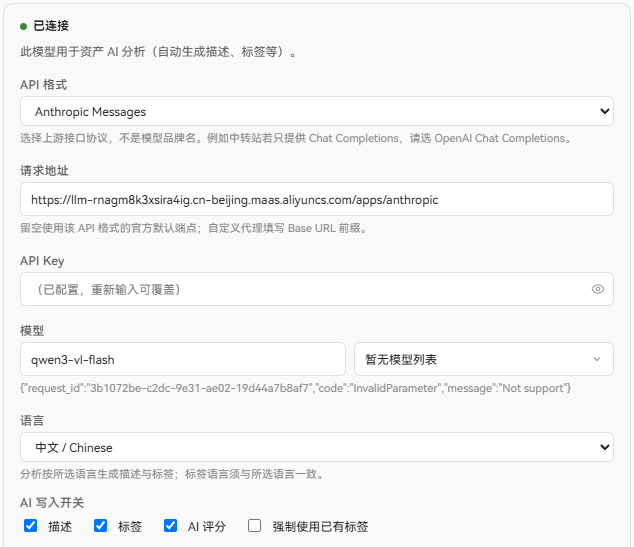
Connect a provider
API format: choose the provider interface, such asDashScope Multimodal (native),OpenAI Chat Completions,OpenAI Responses,Anthropic Messages, orGemini Native. With a relay, follow the relay’s interface instructions.Base URL: usually leave it empty. For a relay or self-hosted gateway, enter the address supplied by that service. DashScope native uses an/api/v1root.API Key: paste the provider key. The eye icon shows it temporarily; after saving, the full key is not displayed. Enter a new key to replace it.Model: enter the provider’s vision model name. With a valid key, the picker can load models; if that fails, enter the name manually.Language: choose one language—Chinese, English, Japanese, or Korean—for descriptions and tags.- Click
Test connection, thenSaveafter it succeeds.
Never put an API key in a script, plugin, screenshot, issue report, or MCP configuration.
AI write toggles
Description: describe visual content, style, and mood.Tags: generate keywords for type, style, subject, and visual characteristics.AI rating: generate a 1–5 reference score.Force existing tags: choose only from tags already in the library.
AI content is stored separately from manual content; manual descriptions, tags, and ratings are not overwritten.
Advanced settings
Concurrent analysis limit: default 16, range 1–32; lower it if the provider rate-limits requests.Maximum image edge: default 2048 px, range 512–4096; images are reduced when needed and never enlarged.Maximum tags: default 8, range 1–32.Chinese description limit: default 100 characters, range 20–500.English description limit: default 60 words, range 10–200.Output style:Normal,Concise, orRigorous.Rating rubric: define what scores from 1 to 5 mean.Custom description prompt: add description guidance such as “focus on composition and lighting”.Custom tag prompt: define the tag vocabulary. Never put a key or secret in a prompt.
Automatic analysis
Accept the disclaimer and enable Automatically run AI analysis on new assets to analyze new images, videos, and 3D models in the background; it is off by default and turning it off does not remove existing AI content.
Supported assets
- Images and camera RAW: a resized image is sent.
- Video: a timestamped contact sheet is sent, not the original video.
- 3D models: a four-view image is sent.
- Audio, text, and unsupported formats: not analyzed by AI.
Manual analysis and results
Choose AI analysis from an asset context menu or use the batch action for a multi-selection. Analyze unanalyzed assets skips assets that already have results; use normal AI analysis to re-analyze one.
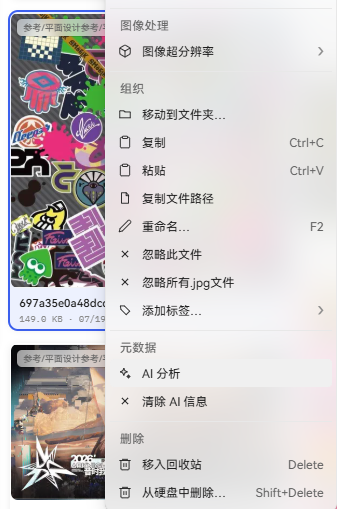
Results appear in the AI section of the asset Inspector. A successful re-analysis replaces the current AI result and does not keep history; clearing AI content does not remove manual content or tag entities.
Jobs and failures
Open Window → Background jobs to see queued, running, paused, failed, and completed AI jobs. You can pause, resume, cancel, or retry failed items. Network, rate-limit, and timeout failures are usually retryable; configuration, permission, quota, and unsupported-format problems must be fixed first.
If a video contact sheet or thumbnail is not ready, retry media generation from Background jobs before retrying AI. Failure messages include a short reason.
Privacy and cost
Serpent does not upload an entire library or provide AI search. Only explicitly submitted, supported assets are sent to the selected provider; check its privacy terms and pricing before enabling AI.