Basics
Create, open, and configure a library
On first launch choose Create library, pick a location, and enter a display name. A library contains managed assets, its database, and a .serpent/ working directory. The display name does not move the library directory.
Use the upper-left Main menu → Library to create, open, import, or export libraries. Library settings lets you rename the current library, see its location, and edit its ignore configuration. A description field is not implemented yet.
The ignore editor uses Git-style rules, one per line; the UI calls it an “ignore configuration file”. Ignore actions for assets, folders, and extensions in this library are written here too. Saving immediately affects browsing, search, and scanning:
# ignore every .tmp file
*.tmp
# ignore this folder
references/drafts/
# keep one file visible
!references/drafts/keep.png
# hide folders whose names start with "."
.*/
The ? help explains *, ?, **, a trailing / for directories, a leading / for library-root rules, and ! to un-ignore.
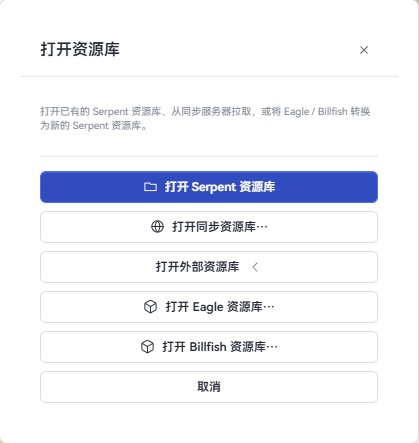
Open external libraries (Eagle / Billfish)
Open library → Open external library… → choose Eagle or Billfish:
- Pick the source library (an Eagle/Billfish library folder or its archive);
- choose where Serpent should create the local library;
- Serpent converts the source and creates a local library at the destination (a large Eagle library can take several minutes on first conversion).
After conversion, browsing, search, tags, AI analysis, and everything else work exactly like a local library, and the original files are left untouched.
Import assets
Drop one or more files, folders, or a mixed selection into Serpent, or use Import files / Import folder. Folder imports are recursive. The browser extension can save web images and videos from the context menu or by drag-and-drop.
The current product registry includes:
- Images: PNG, JPG/JPEG, GIF, TIFF/TIF, WebP, SVG, BMP, ICO, PSD, EXR, TGA
- Camera RAW: DNG, CR2, CR3, NEF, ARW, RAF, ORF, RW2
- Video: MP4, MOV, AVI, WMV, WebM, MKV, M4V
- Audio: WAV, MP3, OGG/OGA, M4A, AAC, FLAC, Opus (waveform cover plus playback)
- 3D: FBX, OBJ, GLTF, GLB, STL (FBX is converted to a viewable GLB)
- Text: TXT, Markdown, JSON, CSV, XML, YAML, and common source/config formats
Serpent copies managed files into the library and assigns a stable asset ID. Name or content duplicates open a conflict dialog. Thumbnails, technical metadata, and eligible AI analysis are generated in the background, so you can keep browsing immediately.
Sequence-frame import
In Settings → Assets, turn Detect image sequences during import on or off (on by default). When enabled, dropping or importing consecutively numbered, same-size images (for example 00001.png…00150.png) opens the sequence import dialog, where you can set the FPS. When disabled, the files are imported as ordinary images. A sequence appears as one playable asset in the viewer and can be dissolved back into individual frames.
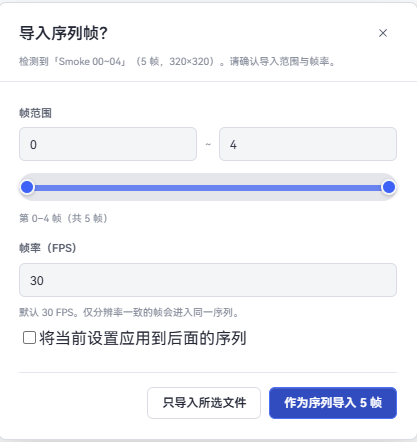
In the dialog, adjust the frame range and FPS, then choose whether to import only the current file or the selected frames as a sequence.
Workspace tabs
Serpent supports multi-tab parallel browsing at the top of the window:

- Create and switch: Click the
+button at the right of the tab bar or use shortcuts⌘T(macOS) /Ctrl+T(Windows) to open a new tab. Each tab independently maintains its browsing position, search and filter criteria, selections, and scroll viewport. - Path hint: Hovering the mouse over a folder tab displays its full relative path within the library (or disk path for linked folders), helping distinguish same-name subdirectories.
- Context menu: Right-click a tab to "Reveal in sidebar" (expands and focuses the item in the sidebar tree), "Copy path", "Reveal in Finder / File Explorer", "Close tab", or "Close other tabs".
- Closing and shortcuts: Use
⌘W/Ctrl+Wor click×on the tab to close it. When only one tab remains, the close button and close menu items are automatically disabled. - Session restore: After quitting and reopening the application, all tabs, their order, and the active tab are automatically restored for each library.
Custom folder and collection appearance (icons and colors)
Customize icons and color accents for managed library folders, linked folder roots, collections, and smart collections:
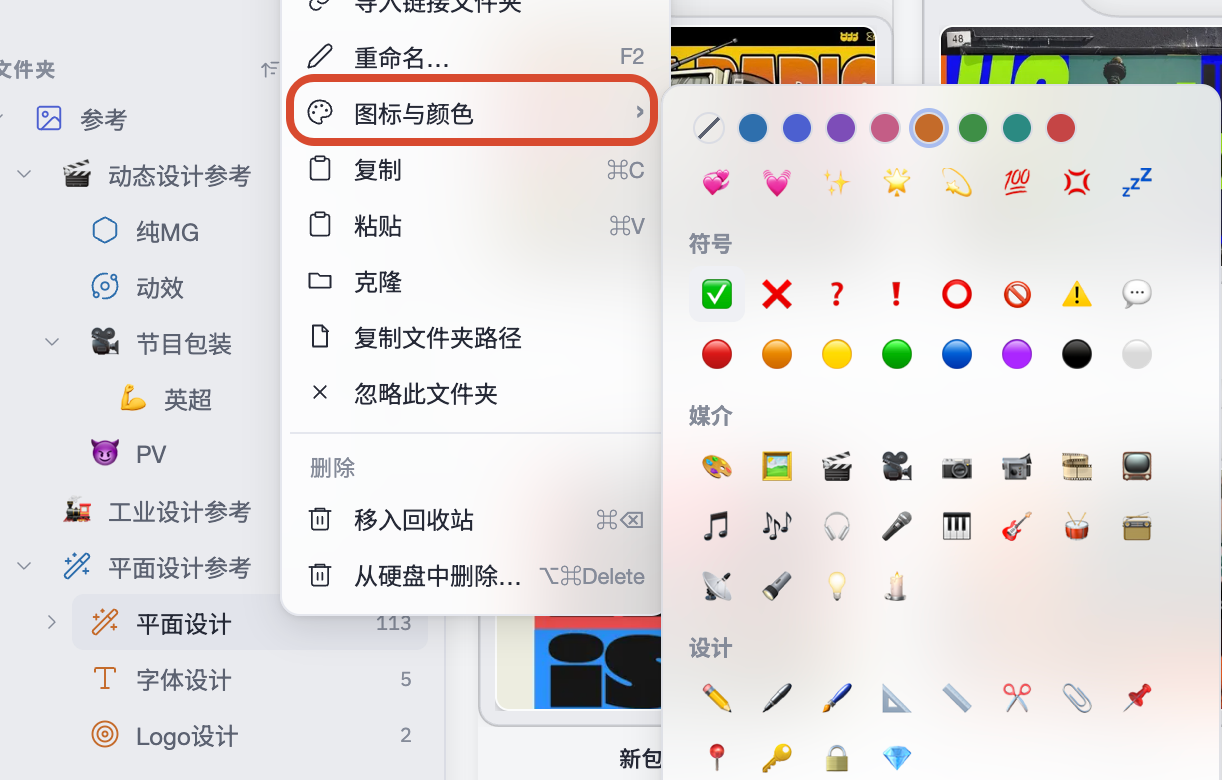
- Setting and clearing: Right-click a target in the sidebar or tab bar, select Icons and colors..., and pick from curated emoji, decorative vector icons, and theme-adapted color swatches; click Restore default to revert to standard icons.
- Consistent appearance: Custom icons and colors synchronize across the sidebar, workspace tabs, and move/add menus.
- Linked folder indicators: Linked folder roots retain linked and offline badges even with custom icons; virtual subdirectories within linked folders do not support custom appearance.
- Data safety: Appearance is stored purely as internal library metadata and never renames or moves real folders on disk.
Browse and organize
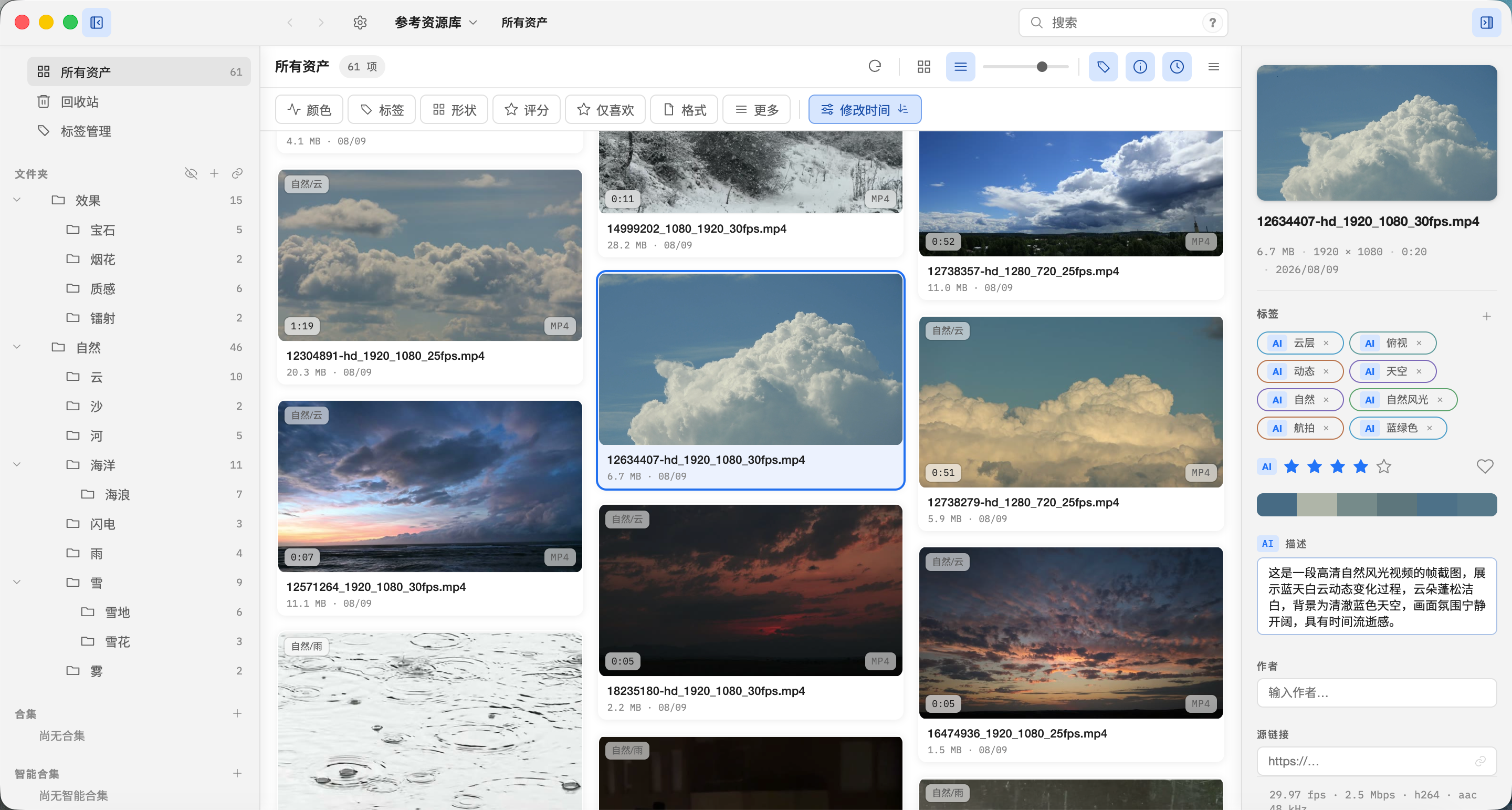
- Sidebar: All assets, Trash, folders, collections, and smart collections. Click or drag to the empty space at the bottom to return to the library root; use the context menu on managed folders to import linked folders.
- Canvas: Supports tile and masonry layouts; use the top toolbar to switch views and toggle visible card fields (filename, size, date, resolution, etc.).
- Hover scrub: Hovering over a video or audio card displays a scrub bar to quickly jump and preview playback.
- Toolbar: Search, advanced filters, sorting, and view controls.
- Inspector: Displays information, tags, rating, favorite status, description, source URL, technical metadata, and AI analysis results for the selected asset.
Supports marquee selection, ⌘/Ctrl click to add, and Shift range selection; press F2 to rename inline.
Viewer
Double-click an asset to open the fullscreen viewer (press Esc to exit):
- Navigation: Use arrow keys
←/→to navigate smoothly between assets in the current view. - Media playback & transforms:
- Videos and audio play automatically on open;
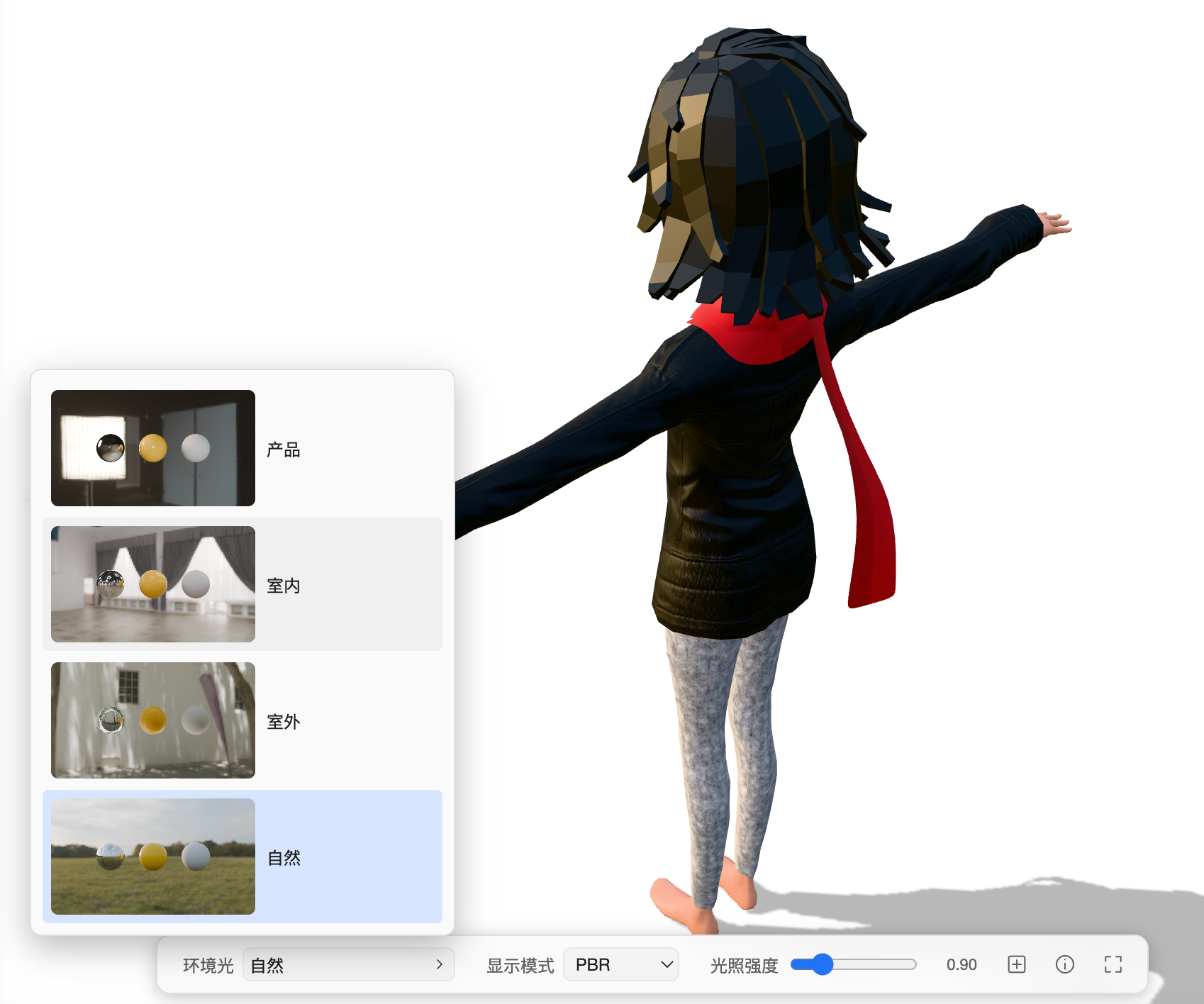
- 3D models support mouse drag rotation, zoom, and HDRI lighting switching;
- The toolbar provides 90° clockwise rotation, horizontal/vertical flip, fit-to-view (numpad
.), and fullscreen.
Tags, collections, and smart collections
- Tags: Add from the Inspector or context menu, with batch tagging across multiple assets; filter by tags in the search box or filter panel.
- Collections: Curate assets across folders (an asset can belong to multiple collections); removing an asset from a collection or deleting a collection never deletes the underlying file. Opening a parent collection lets you toggle whether to include descendant assets.
- Smart collections: Save custom search queries and structured filter criteria, automatically displaying matching assets whenever opened; right-click to edit rules.
Trash and deletion
Normal Delete / macOS ⌘⌫ moves an asset or folder to Trash. Windows Shift+Delete and macOS ⌥⌘Delete delete from disk after a confirmation. The undo icon in the notification can reverse the most recent undoable file operation and refreshes the current view.
Linked folders
Import linked folder in the File menu references a real folder outside the library (such as a project or material directory). Assets are not copied into the library; they are referenced in place in their original folder. You can later copy a linked folder into the library (making it managed), relink it, or set rules for it.
WebDAV cloud sync
Serpent can sync a library across machines over WebDAV: configure servers globally, bind each library, set auto-sync and the poll interval, and open remote synced libraries. See Sync and external libraries.
Shortcuts
| Action | macOS | Windows |
|---|---|---|
| Toggle fullscreen | ⌃⌘F | F11 |
| New workspace tab | ⌘T | Ctrl+T |
| Close current tab | ⌘W | Ctrl+W |
| Open viewer | Enter / Space | Enter / Space |
| Exit viewer to browse | Esc | Esc |
| Open in external app | ⌘O | Ctrl+O |
| Reveal in file manager | ⌘⇧S | Ctrl+Shift+S |
| Focus search | ⌘F | Ctrl+F |
| Rename | F2 | F2 |
| Move to Trash | ⌘⌫ | Delete |
| Delete from disk | ⌥⌘Delete | Shift+Delete |
| Copy / Paste | ⌘C / ⌘V | Ctrl+C / Ctrl+V |
| Fit viewer | Numpad . | Numpad . |
See Search and filters for query examples and AI analysis for AI setup and jobs.