WebDAV Cloud Sync
Serpent can sync a library across machines over WebDAV. Configure servers globally, bind each library individually, and Serpent syncs both ways automatically: local changes upload, remote changes pull.
Sync overview
- Configure one or more WebDAV servers in General settings; each library binds to one server and a remote folder.
- Sync is bidirectional: local imports, edits, and deletions upload automatically; remote changes are pulled to the local library.
- Auto-sync is per library: after saving a binding it runs once immediately, then checks the server for remote changes on the configured poll interval; local imports, tag edits, and description edits upload about 5 seconds after the last local change (independent of the poll interval).
- Unsynced files show a status icon at the bottom-right of the card. Turn this off under Settings → Sync. Toasts no longer say “Syncing…” / “Synced”. The library switcher (top-left, next to the library name) still shows a connection icon — green link = auto-sync on, grey link-off = off (hover for details).
Configure a WebDAV server (General settings)
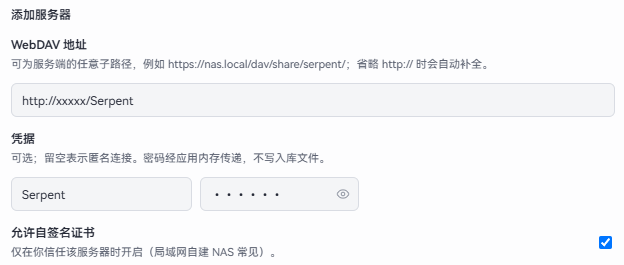
Open General settings → Sync to add a sync server:
- Server address: must start with
http://orhttps://; use the WebDAV path of your NAS or shared folder (for examplehttps://nas.local/dav/share/). - Username / password: server credentials. The password is encrypted with the system secure storage (macOS Keychain / Windows DPAPI) and never stored in plain text.
- Allow self-signed certificate or HTTP: enable for self-hosted servers without a proper certificate.
- Show sync status on cards: on by default. Turn off to hide the corner marks.
- After saving you can test the connection; failures show an actionable reason (invalid address, DNS, TLS, authentication, …).
Bind a library (Library settings)
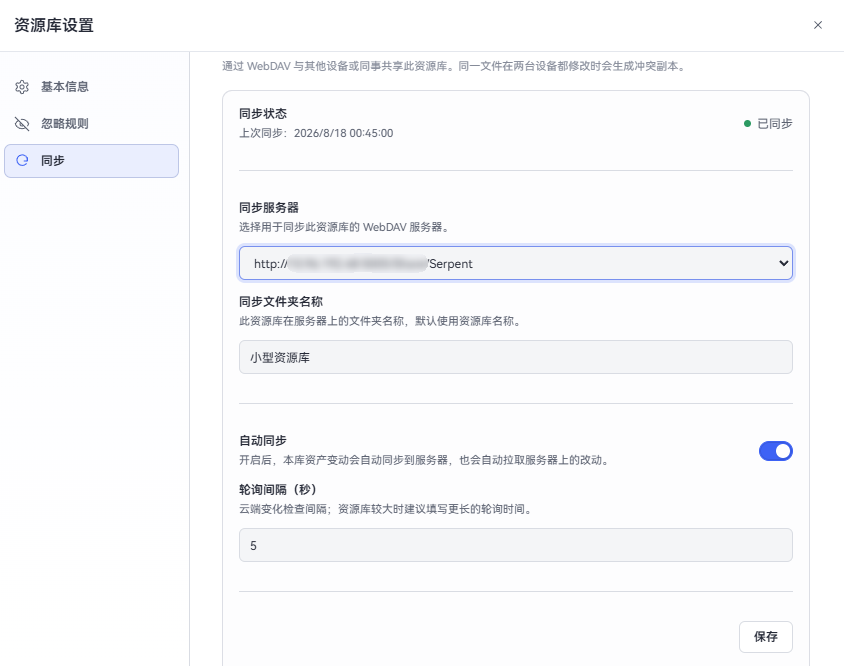
Open Library settings → Sync:
- Sync status: shows not synced / syncing / last synced time.
- Server: the server this library binds to; switching servers tests the connection automatically.
- Sync folder name: the remote folder name, defaults to the library name. The remote location is
server address/folder name/. - Auto sync: when on, local changes upload and remote changes pull automatically.
- Poll interval (seconds): how often remote changes are checked, 5 seconds by default. For large libraries, consider a longer interval to avoid frequent checks weighing on the network and disk.
- Save: persists the binding; turning auto-sync on triggers a sync immediately.
Sync behavior
- The first sync uploads assets, metadata, and a manifest to the server; later syncs transfer only changed files. Metadata includes human and AI tags, descriptions, ratings, and favorites. Collection membership is not synced yet.
- Files in linked folders are not synced yet.
- If two machines edit the same file, the losing version is kept as a “name (conflict-…)” copy instead of being silently overwritten.
- Auto-sync and manual sync are mutually exclusive; a failed sync only writes a log entry and does not interrupt you.
- After a pull creates local files, folders, or tags, the sidebar, canvas, and Inspector for the current selection update on their own. F5 also reloads tags on the selected asset. Empty folders with no files are not uploaded, so the other device will not show them.
- After a folder or file is moved or renamed on one computer, the other computer shows it in the new place once sync finishes, without keeping an empty folder at the old path.
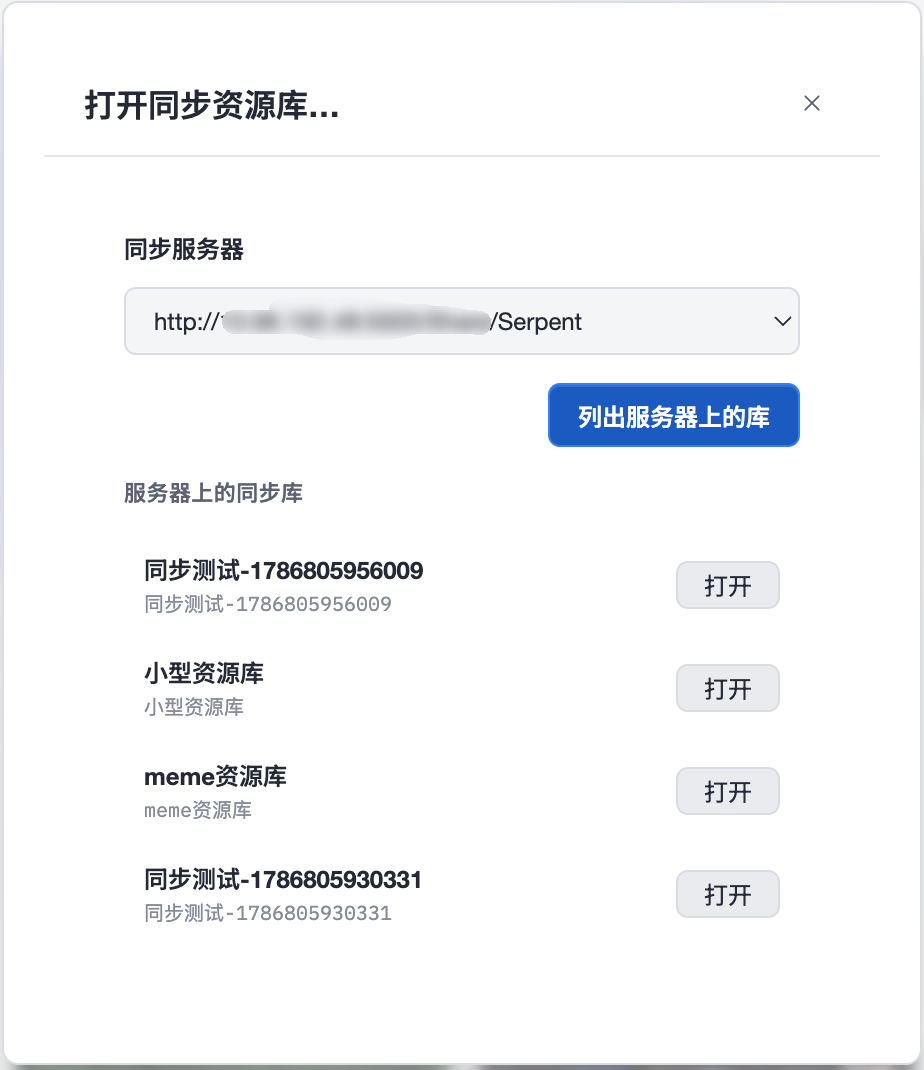
Open a synced library
Open library → Open synced library…:
- Choose a configured server;
- the panel lists synced libraries on that server (recognized by their remote manifest, so you can continue on another device);
- pick a local destination and open — remote content is downloaded locally.
The server must support file upload/download (PUT/GET).