Automation
Serpent offers two kinds of automation: scripts for batch organization, and MCP for connecting an external AI tool to Serpent. Normal browsing, importing, and viewing do not require either one.
Automation scripts
Scripts are useful for repeated organizing work, such as adding tags in bulk, changing ratings, or moving assets into a folder.
- Open a library.
- Choose More tools → Automation scripts.
- Create or open a script, read it first, and click Run.
- Return to the asset canvas and check the result. When unsure, try a small selection first.
Scripts modify a library only through the operations Serpent provides; they do not run arbitrary programs on your computer. Use scripts from sources you trust and back up important libraries before a large batch.
Connect an external AI tool (MCP)
MCP lets an external AI tool read and organize Serpent assets. It works on this computer and does not publish your library to the internet automatically.
The simplest way to use it
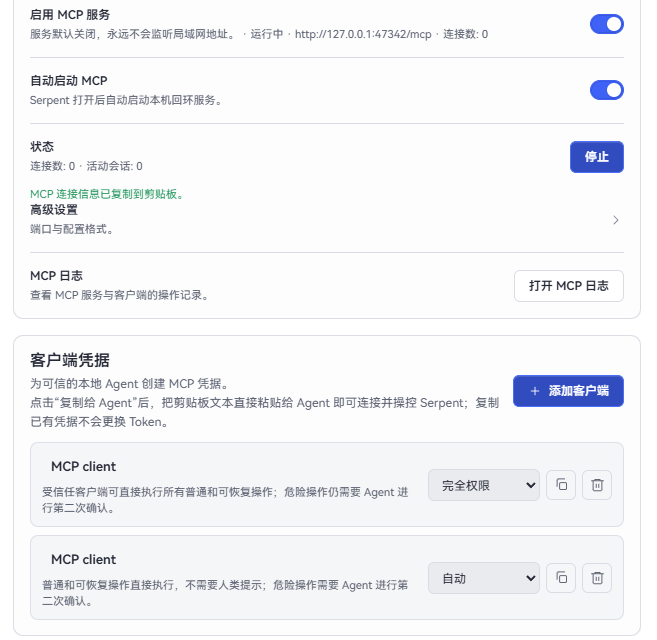
- Open Settings → MCP.
- Enable the MCP service, and enable Auto-start if you want it to start with Serpent.
- Click Add client and choose the format for your client.
- Click the copy action on the client row (Copy for Agent).
- Paste the entire clipboard text directly into your Agent. Do not split out the address or authorization details by hand: the text contains what the Agent needs to connect to and control Serpent, along with short usage notes.
The default address is http://127.0.0.1:47342/mcp. Each client connection has its own authorization. Keep the copied connection information private, and revoke the client from MCP settings when you no longer trust it.
After connecting, the Agent receives the basic usage rules in the MCP server instructions and tools/list. It should then call serpent_library_list_open or serpent_library_list_recent to obtain a libraryId; if it asks which library to use, let it list the libraries first and choose by ID. Every library-scoped call must include that explicit libraryId; critical operations also require the Agent's second-step confirmation.
Only enable the connection for a local AI tool you trust. Serpent still asks for confirmation before impactful operations such as deleting or moving assets.
More information
For complete commands, development guidance, and integration examples, see the extension author manual.