Search and filters
Scope and updates
Search runs only in the current browse scope: the current folder/collection, the include-descendants choice, and active structured filters define the candidate set. Typing updates the result after about 200 ms; press Enter to submit immediately. Results load progressively in pages.
Search covers file name, tags, description (including AI description), source URL, author, folder path, and searchable metadata. Plain terms are case-insensitive substring matches.
Advanced query syntax
Hover or keyboard-focus the ? beside the search field for the in-app reminder. Queries are made of small terms:
| Syntax | Meaning | Example |
|---|---|---|
| space | AND within one group; every term must match | poster blue |
| | OR; any group may match | poster | cover |
leading - | Exclude a condition | -tag:draft |
| double quotes | Keep spaces and | inside a phrase | "hero concept" |
field:value | Search only one field | author:Jane |
Field aliases:
- File name:
name:orfilename: - Tags:
tag:ortags: - Description:
desc:ordescription: - Source URL:
source:,url:,link:, orsource_url: - Author:
author: - Folder path:
path:,folder:, orfolder_path: - Metadata:
meta:,metadata:, ormetadata_text:
Example:
name:"hero concept" -tag:sketch | author:Jane
This means “the file name contains hero concept and is not tagged sketch, or the author is Jane”. Without a field prefix, all searchable fields are searched. Width, height, long edge, and duration are structured filters, not search operators.

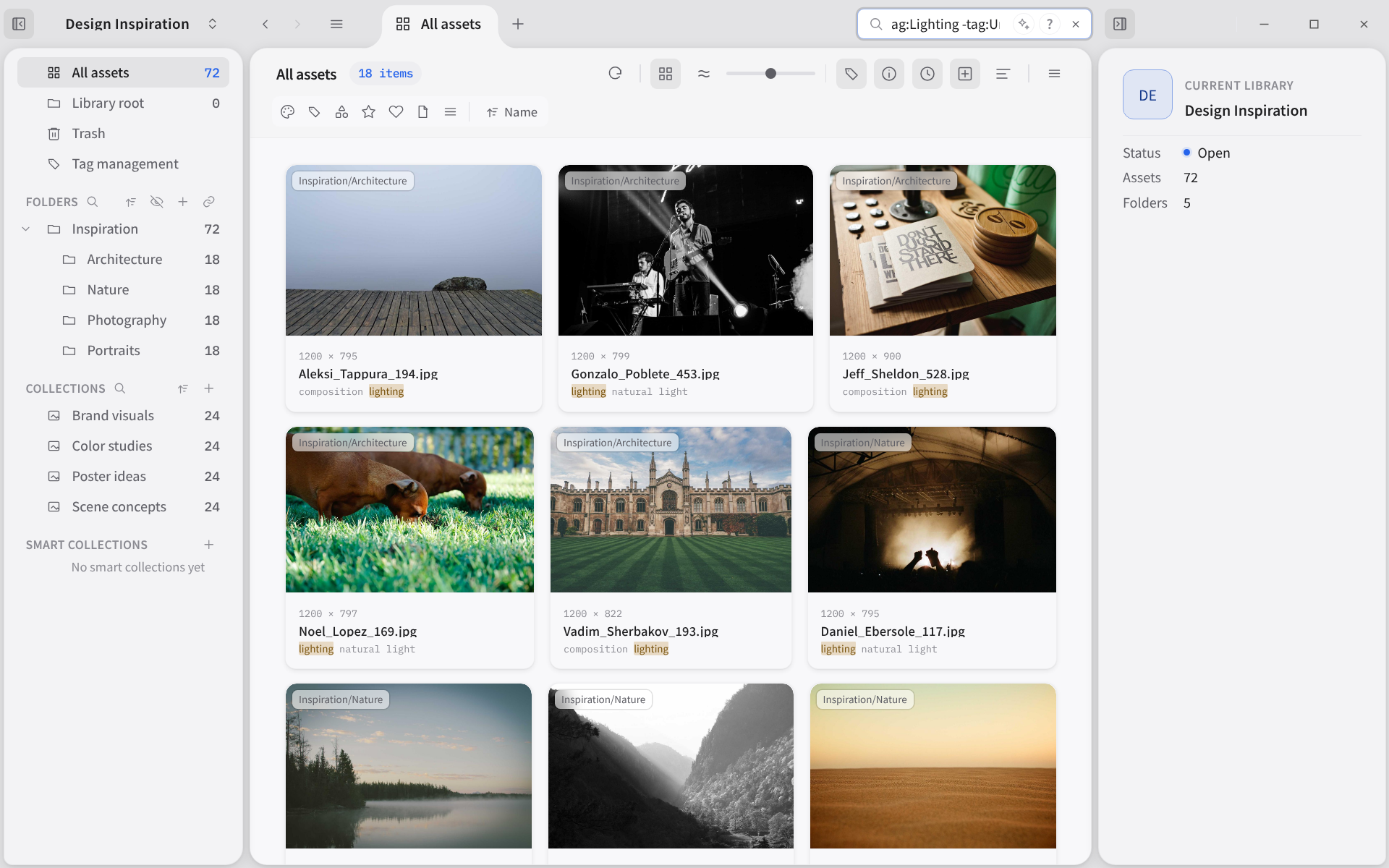
Example: tag:Lighting -tag:Urban shows only assets tagged Lighting and not tagged Urban.
Filters
Open the Filters button beside the search field. Different dimensions combine with AND; multiple values within one dimension combine with OR. Available dimensions include:
- Color: red, orange, yellow, green, cyan, blue, purple, pink, black, white
- Tags: searchable tags, top tags, and recently used filters
- Shape: landscape/portrait, 16:9, 4:3, 1:1, 3:4, 9:16 presets, plus a custom aspect ratio
- Rating: unrated through five stars
- Format: image, video, audio, 3D, text, and individual extensions
- More: favorite, source URL present/absent, availability (available/missing), long-edge buckets, width, height, and duration ranges
Hold Shift while clicking color, tag, rating, format, or shape-preset values to OR-select several values in one dimension. Shift-click an active value again to remove it. A normal click replaces that dimension’s selection; clicking its only selected value clears it. Different dimensions remain ANDed. Boolean and numeric fields in More are independent fields, not a list of discrete values.
The bottom of the filter popover repeats “Hold Shift to multi-select”. Active conditions appear as removable chips; Clear all resets every filter.

Semantic search (experimental)
Settings → Semantic search is marked Experimental. It finds images and text by meaning, and can look for similar assets. It does not replace keyword search over file names, tags, and the other indexed fields, and it is not AI analysis.
- Master switch: Off by default. While it is off, no library uses semantic search.
- Local model: Under Local, install EmbeddingGemma2. This build uses less space and is the one to install first. The model is downloaded into application data on this computer and is not part of the installer. If this system has no downloadable runtime, use a custom service instead.
- Custom embedding service: Under Custom, add a service and choose the kinds of content it supports. Vector length can be filled in or left empty; after saving, choose Test. The key stays on this computer. Custom services are used for text search for now; finding similar images still uses the local model. A cloud address needs https. Before search text and text files are sent to a remote address, allow that library to send text.
- Per library: Open Library settings → Semantic search, choose a model for this library, follow the Settings default, or turn it off, then choose Save. Another library does not pick up the same choice. Index progress appears on this page or in Background jobs.
- Where the index lives: The index is stored in that library’s
.serpent/semantic/directory and stays with the library. Rebuilding clears the saved vectors and processes assets again. A remote service receives the content again. - Searching: After the selected model is ready, the semantic button beside the search field switches between semantic search and keyword search. Right-click an asset and choose Find similar. The local model can handle images, audio, and text; to keep analysis time down, semantic search uses a video's cover, not a frame-by-frame analysis. Assets in Trash, and types the current model cannot handle, do not show this command.
- Batch size: Pictures per batch can be 25, 50, or 100. The default is 50. A change applies starting with the next semantic search.
- Turning this on makes library preparation take longer and uses more memory. Items that are already encoded can be searched first. While the rest are still being encoded, the results may be incomplete.
Sorting and smart collections
Sort by name, modified time, created time, file size, resolution, duration, rating, color, or author, ascending or descending; shuffle is also available. A search, its filters, and its sort can be saved as a smart collection. Smart collections recalculate when opened, so their results follow library changes.